Blog
Back to blog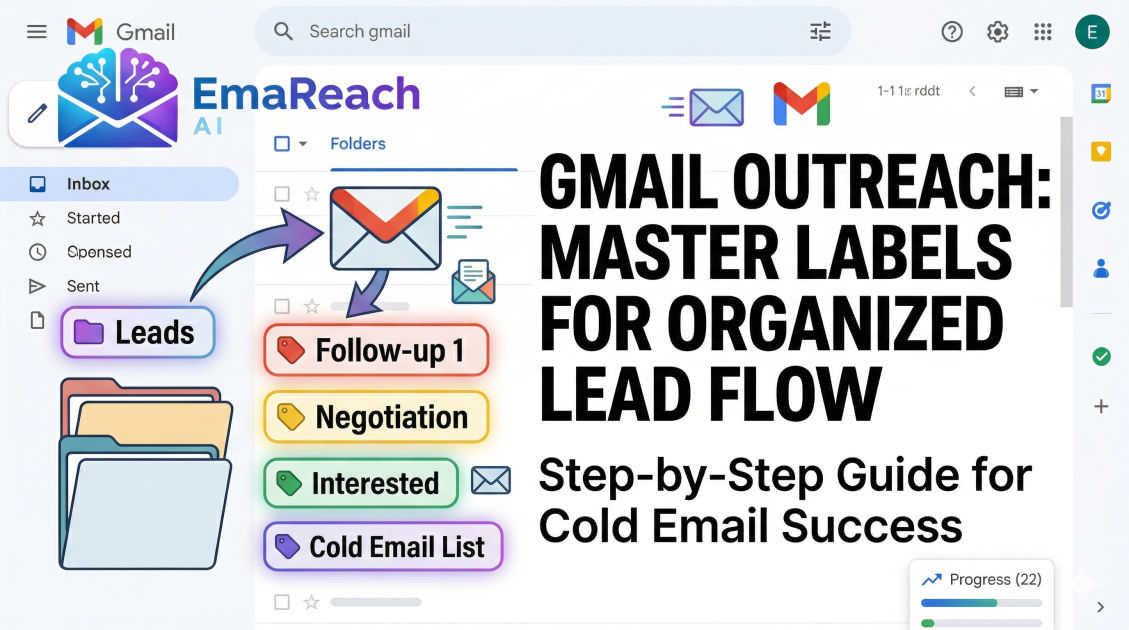
How to Use Gmail Labels to Organize Cold Email Outreach
cold emailoutreachgmail labelsemail organizationsales funnelproductivityinbox management
Introduction to Gmail Labels for Outreach
Cold email outreach is a numbers game, but it is also a game of precision. When you are sending dozens or hundreds of emails a week to potential leads, your inbox can quickly transform from a productivity hub into a chaotic mess of unread threads, follow-ups, and missed opportunities. Many professionals turn to expensive Customer Relationship Management (CRM) tools to manage this flow, but for those starting out or looking for a lean, integrated solution, the power of Gmail labels is often underestimated.
Gmail labels are more than just folders; they are a flexible tagging system that allows a single email to live in multiple categories simultaneously. When applied to cold email outreach, labels become the visual and structural backbone of your sales funnel. By mastering labels, filters, and color-coding, you can build a manual CRM directly inside your inbox that ensures no prospect ever falls through the cracks.
The Fundamental Difference Between Labels and Folders
To use Gmail effectively for outreach, you must first understand that labels do not function like traditional computer folders. In a folder system, a file can only be in one place at a time. If you move an email to a "Follow Up" folder, it is no longer in your "Inbox."
Labels, however, act like tags. An email can have the labels "Prospecting," "High Priority," and "Follow Up 2" all at once. This multi-dimensional categorization is essential for outreach because a lead often occupies several states simultaneously. They might be a high-value target (Priority) who has been contacted once (Status) and belongs to a specific industry (Category). Labels allow you to view your outreach from all these angles without duplicating data.
Setting Up Your Outreach Label Hierarchy
Organization begins with a clear structure. Instead of creating labels haphazardly, you should design a hierarchy using nested labels (sub-labels). This keeps your sidebar clean and group-related actions together.
1. The Pipeline Stage Labels
These are the most critical labels for tracking where a prospect is in your sales funnel. You might create a parent label called [Outreach] and then create sub-labels:
- [Outreach] / 01-Not Contacted: Leads you have identified but haven't messaged yet.
- [Outreach] / 02-Initial Contact: Prospects who have received the first email.
- [Outreach] / 03-Follow Up Sent: Prospects who are in the follow-up sequence.
- [Outreach] / 04-Replied: Leads who have engaged with you.
- [Outreach] / 05-Meeting Scheduled: High-intent leads moving to a call.
- [Outreach] / 06-Closed/Won: Successfully converted leads.
- [Outreach] / 07-Not Interested: Leads who opted out or weren't a fit.
2. Priority Labels
Not all leads are created equal. Use a separate set of labels to denote the value of the prospect:
- Priority / High: Decision-makers at Tier-1 companies.
- Priority / Medium: Standard leads that fit your ideal customer profile.
- Priority / Low: General inquiries or smaller targets.
3. Campaign or Industry Labels
If you are running multiple campaigns simultaneously—for example, one for SaaS companies and one for E-commerce agencies—you need to distinguish them to measure which messaging works best.
- Campaign / SaaS-Q1
- Campaign / Agency-Referral
Using Color Coding for Instant Visual Recognition
One of the most powerful features of Gmail labels is the ability to assign colors. Our brains process visual information much faster than text. By color-coding your labels, you can scan your inbox in seconds and know exactly what needs your attention.
- Red labels for "Replied" or "Urgent" to signal immediate action.
- Green labels for "Meeting Scheduled" or "Closed/Won" to represent progress and revenue.
- Yellow or Orange for "Follow Up Sent" to indicate a pending state.
- Grey or Blue for administrative categories like "Prospecting."
To change a label color, hover over the label in the left-hand sidebar, click the three dots, and select "Label color."
Automating Your Inbox with Gmail Filters
Manually labeling every single email is tedious and prone to human error. Gmail Filters allow you to automate the organization of your cold outreach.
Filtering by Recipient List
If you have a CSV list of prospects you are reaching out to, you can create a filter that automatically labels any incoming email from those addresses with your "[Outreach] / 04-Replied" label. This ensures that when a lead finally hits your inbox, it is already tagged and highlighted.
Filtering by Keywords
If you use specific tracking keywords in your outreach or if your cold emails include a unique identifier in the footer, you can set a filter to catch those. For instance, if your outreach always includes a link to a specific case study, you can filter for that URL and apply the "Outreach" label automatically to outgoing sent mail.
Strategies for Effective Follow-Ups
The fortune is in the follow-up. Most cold email responses happen after the third or fourth touchpoint. Gmail labels can help you manage this cadence without a third-party tool.
The "Waiting For" System
Create a label called "Waiting For." Whenever you send a cold email, apply this label. Once a week, click on the "Waiting For" label in your sidebar. Any email that is still there and hasn't received a reply is a candidate for a follow-up. Once you send the follow-up, you can update the label to "Follow Up 1," "Follow Up 2," etc.
Using Search Operators with Labels
You can use Gmail's search bar to find specific segments of your outreach. For example, searching label:outreach-replied -label:meeting-scheduled will show you everyone who has replied but hasn't yet booked a meeting. This allows you to target your manual efforts toward the prospects most likely to convert.
Enhancing Deliverability with EmaReach
While organizing your inbox is vital, your efforts are wasted if your emails never arrive. To ensure your carefully labeled outreach actually reaches the prospect, consider using EmaReach. Stop Landing in Spam. Cold Emails That Reach the Inbox. EmaReach AI combines AI-written cold outreach with inbox warm-up and multi-account sending—so your emails land in the primary tab and get replies. By using EmaReach alongside a labeled Gmail system, you solve both the technical challenge of deliverability and the operational challenge of organization.
Creating a "Lead View" with Multiple Inboxes
Gmail has a hidden feature called "Multiple Inboxes" (found under Settings > Inbox Type). This allows you to see several labeled categories on a single screen.
Instead of just a standard list of emails, you can set up panes for:
- Is:unread label:outreach-replied (New replies you haven't seen)
- label:meeting-scheduled (Your active pipeline)
- label:waiting-for (People you need to nudge)
This turns your Gmail dashboard into a functional CRM board, similar to Trello or Pipedrive, but entirely contained within your email interface.
Maintaining Your Labeled System
A label system is only as good as its maintenance. If you forget to update a label when a prospect moves from "Initial Contact" to "Replied," your data becomes unreliable.
- Daily Triage: Spend 10 minutes at the end of every day ensuring that every email in your inbox has the correct label.
- Archive Method: Once an email is labeled and you have completed the necessary action, Archive it. Archiving removes it from the main inbox view but keeps the labels intact. This allows you to maintain "Inbox Zero" while still being able to pull up all "Meeting Scheduled" leads with a single click.
- Remove Old Labels: When a prospect moves to a new stage, remove the old stage label. An email should ideally only have one "Stage" label at a time to avoid confusion.
Managing Unsubscribe and Negative Responses
Not every response is a lead. Some will be "not interested" or "remove me from your list." It is vital to label these appropriately as "[Outreach] / 07-Not Interested" or "Opt-Out."
This isn't just for organization; it's for compliance and reputation. By filtering and labeling these responses, you can easily export the list of email addresses periodically and add them to your global "blocklist" to ensure you never accidentally email them again in future campaigns.
The Role of Templates and Labels
Gmail Labels work perfectly with Gmail Templates (formerly Canned Responses). When you see a specific label—for instance, "Outreach / 04-Replied"—you likely have a standard response for that stage.
By combining these, your workflow becomes:
- See red "Replied" label.
- Open email.
- Insert "Meeting Request" template.
- Send and update label to "Meeting Scheduled."
- Archive.
This workflow can reduce the time spent on outreach management by over 50%, allowing you to focus on the actual sales conversations rather than the logistics of moving emails around.
Advanced Search Queries for Outreach Management
Once you have a robust labeling system, you can use advanced search queries to generate "reports" on your outreach performance.
label:outreach-replied after:2024/01/01: See how many replies you've generated this year.label:outreach-replied label:priority-high: See your highest-value active conversations.has:attachment label:outreach: Find all proposals or decks you've sent to prospects.
These queries allow you to extract deep insights from your inbox without needing to export data to a spreadsheet.
Conclusion
Organizing cold email outreach doesn't require a complex software stack or a massive budget. By leveraging the native functionality of Gmail labels, you can create a sophisticated, color-coded, and automated system that tracks every lead from the first hello to the final handshake.
The key to success lies in the discipline of the system: creating a logical hierarchy, using filters to do the heavy lifting, and maintaining the system through daily triage. When your inbox is organized, your mind is clear, and your outreach becomes significantly more effective. Combined with a focus on deliverability and high-quality writing, your Gmail labels will become the engine that drives your business growth.
EmaReach AI
Ready to scale your cold email outreach?
Join thousands of teams using EmaReach AI for AI-powered campaigns, domain warmup, and 95%+ deliverability. Start free — no credit card required.
Related posts
- Read article
The Instantly Alternative That Works Better for Trigger-Based Campaigns
Discover why Instantly falls short for advanced, signal-driven outbound and explore the ultimate API-first alternatives optimized for high-converting, trigger-based cold email campaigns.
- Read article
The Instantly Alternative That Handles High Bounce Rates Without Panic
Discover how transitioning to an advanced Instantly alternative can safeguard your cold email infrastructure. Learn to handle high bounce rates effortlessly using real-time verification, smart mailbox rotation, and automated safety nets to protect your sender reputation and maintain consistent primary inbox placement.